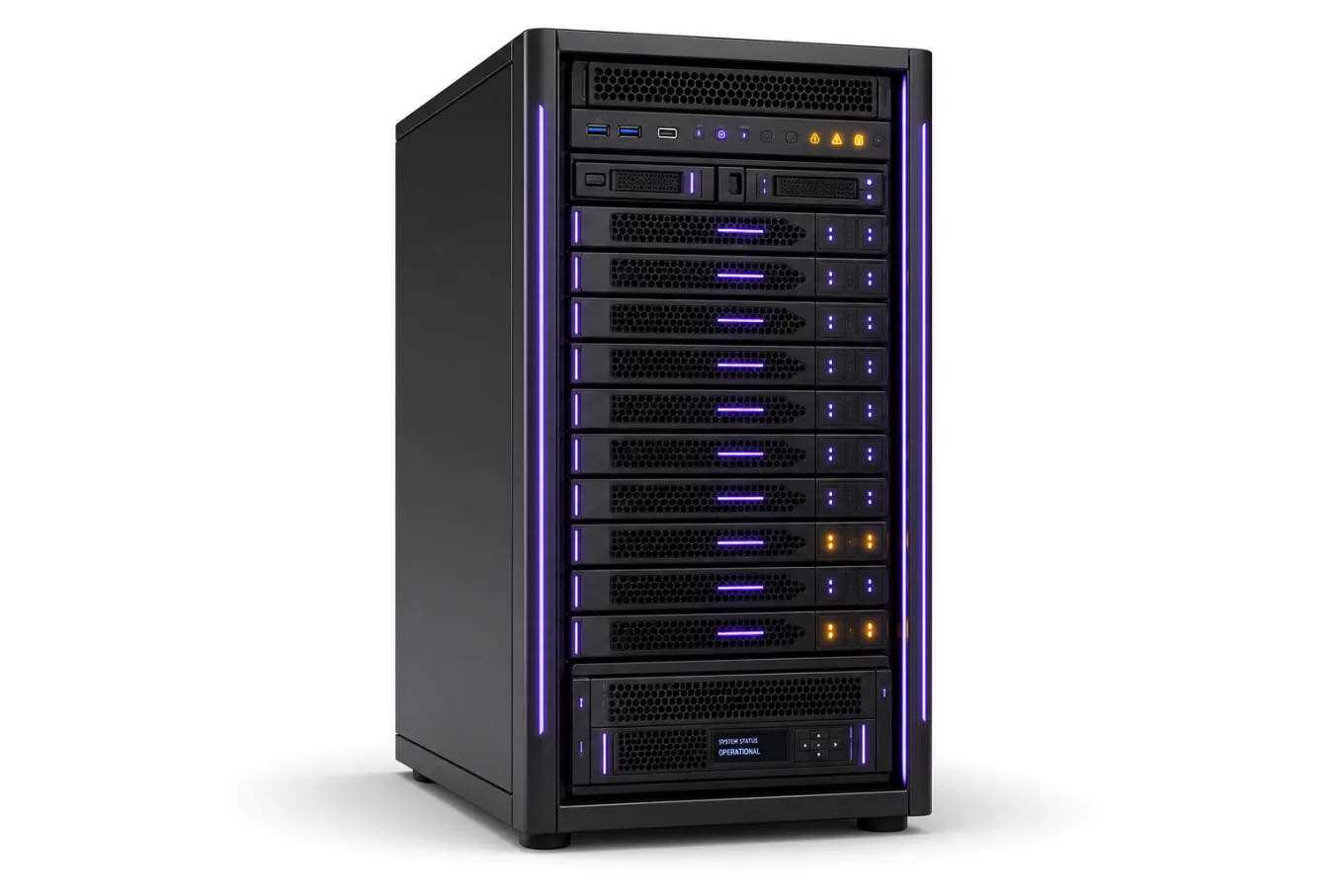



The 9 PM crash — and the 90-second decision
It's 9:15 PM. Your warehouse manager texts: the inventory system is down. The label printers are dead. The shift supervisor can't access anything. Orders are backing up.
You call your IT provider. Voicemail.
What happens in the next 30 minutes largely determines whether this is a two-hour inconvenience or an all-night disaster. This guide is the playbook.
Step 1: Confirm the scope (minutes 0–5)
Before touching anything, you need to know what's actually down.
Is it the server, the network, or just one application?
- Can any workstations reach the internet? (Try loading a webpage on an affected machine.)
- Can machines that can't reach the server still reach each other? (Ping test between two workstations.)
- Is the server console showing anything? (Physical access — check the front panel LEDs and any error codes.)
The answers split your situation into three very different problems:
| Symptom | Most likely cause | |---|---| | No machines can reach anything | Network switch, router, or ISP | | Machines can reach internet but not server | Server OS, NIC, or server-side firewall | | One application broken, others work | Application crash, database lock, or licensing | | Server shows physical error codes | Hardware failure — RAID, PSU, or RAM |
This triage takes five minutes and dramatically changes your next move.
Step 2: Don't reboot blindly — understand the risk
The most common mistake during after-hours server failures is an immediate hard reboot. Sometimes that fixes it. Sometimes it destroys your night.
Do NOT hard-reboot if:
- The server is mid-write on a database (you risk corruption)
- The drive activity light is solid-on (not blinking — solid, like it's working hard)
- You're running a VM host and guest machines are mid-transaction
- You have RAID in a degraded state (check if any drive LEDs are amber instead of green)
It is generally safe to restart if:
- The OS is completely unresponsive and shows no drive activity
- You know no one was actively writing data (it's genuinely after hours, all users logged off)
- You've already taken note of any error messages displayed
If you do restart: time it. Note the exact restart time. This matters for log analysis later.
Step 3: Check the event logs before you call anyone
If you can access the server console or a remote management interface (iDRAC on Dell, iLO on HPE), check the Windows Event Viewer system log or equivalent first. The error will almost always be there.
What to look for:
- Event ID 6008 — unexpected shutdown (often precedes a crash)
- Event ID 41 — Kernel-Power (system restarted without clean shutdown)
- Event ID 7034 / 7031 — service crashed unexpectedly
- Disk errors (event IDs 11, 51, 153) — these are hardware warnings and change the urgency entirely
Write down (or photograph) the error codes before calling support. A good engineer can diagnose remotely in minutes when you have these. Without them, the first ten minutes of the call is just gathering what you already have in front of you.
Step 4: Document before you do anything else
This sounds counterintuitive when things are on fire, but two minutes of documentation prevents hours of confusion:
- Screenshot any error messages on affected screens
- Note what time the failure started (or the last time it was working)
- List which users are affected vs. which aren't
- Note any changes made today: software updates, new hardware, moved cables, anything
Even a rough "server stopped responding around 9:10, three warehouse PCs affected, office machines fine, no changes today that I know of" is invaluable context.
Step 5: Escalate to after-hours support immediately
Here's the honest truth: if you're past five minutes of triage and still don't know what's wrong, you need a senior engineer on the phone.
The reason is simple. Most server failures have a five-minute window where the right action (graceful restart, RAID rebuild initiation, application restart in the correct sequence) is obvious to someone who has seen the failure pattern before. Spend thirty minutes troubleshooting blind and you may foreclose options that were available at minute five.
What a good after-hours engineer will ask:
1. What's the server make, model, and OS? 2. What error messages are visible on the console? 3. What did users report and at what time? 4. Any changes today? 5. Do you have a current backup and when did it last run successfully?
That last question matters more than anything else. If the answer is "I'm not sure," the call just got more urgent.
The backup question: where most small businesses are exposed
During server failures, the most common point of additional damage isn't the server hardware — it's discovering the backup situation.
The scenarios we see most often:
- Backup ran, but to the same server that just died — this is more common than you'd expect
- Backup ran to an external drive that wasn't mounted — cloud or NAS is unmounted and the backup task silently "succeeded" with nothing
- Backup is running but restoration has never been tested — the backup job runs but the restore process was never validated; files exist but are corrupt or incomplete
- Backup is weeks or months old — billing data, customer records, and inventory changes from the past 30 days are at risk
If you're reading this article during a server failure and you're not 100% certain your backup is current and restorable, that needs to be on the call.
Common after-hours server failure causes — and what they mean
1. Windows Update rebooted the server
Microsoft Patch Tuesday lands the second Tuesday of each month. If your server isn't configured to defer or schedule updates, it may have rebooted mid-shift. The tell: recent Windows Update entries in Event Viewer, and the server is actually online after the reboot — it just dropped all active sessions.
Severity: Low. Users reconnect.
2. RAID drive failure — degraded array
One physical disk in a RAID array failed. If it's RAID 1 or RAID 5, you're still running — but you're one more drive failure away from data loss. The amber drive LED and RAID controller alerts in the event log are the signature.
Severity: High. Requires same-night attention to order and stage replacement drive. Don't let this sit until morning without at least documenting the array state.
3. Database deadlock or runaway process
An application (accounting software, inventory system, ERP) locked a database table and other processes are waiting. The server is fine; the database engine is stuck.
Severity: Medium. Often resolved by identifying and killing the blocking process, or by gracefully restarting the application service in the correct sequence.
4. NIC or switch port failure
The server is running fine but its network connection dropped. Could be a failed NIC, a bad cable, or a switch port that locked up. The server console shows it's healthy; you just can't reach it over the network.
Severity: Low to Medium. Often resolved by cycling the switch port remotely or using the server's secondary NIC if one exists.
5. Storage full
Logs, temp files, or a runaway process filled the system drive. Windows stops functioning when the OS drive is 100% full. Services crash, applications refuse to launch.
Severity: Medium. Recoverable by clearing space — but you need to identify what filled up and why.
6. Memory failure or overheating
Rare, but real. A failed DIMM or thermal event causes instability or a hard halt. Physical server inspection required.
Severity: High. May require hardware replacement. Data is usually intact.
What "after hours" actually means for server recovery
The difference between a two-hour and a twelve-hour recovery often comes down to one thing: is there a live engineer available to make the call at hour one?
Most server failures are recoverable. The window where they're easily recoverable is the first 30–60 minutes. After that, one of two things typically happens:
1. Someone attempts fixes without knowing the failure mode and creates secondary problems — a corrupted filesystem from an ill-timed reboot, a RAID that starts a lengthy rebuild at the worst moment, an application brought up in the wrong sequence.
2. Nothing is attempted and the business waits until morning, losing 8–10 hours of operation for a failure that would have taken 90 minutes to fix the night before.
Neither outcome is inevitable. It requires a senior engineer — not a help desk level 1, not a knowledge base, not a chatbot — who has seen the failure pattern before and can make the right call at the right moment.
Preparation: what to do before the next failure
The best time to think about after-hours server recovery is not at 9 PM when things are down. Here's a short pre-failure checklist:
- [ ] Document your server make, model, and OS and keep it somewhere accessible (printed, in your phone's notes, anywhere other than on the server)
- [ ] Know your RAID configuration — RAID 0 (no redundancy), RAID 1 (mirrored), RAID 5 (parity), RAID 10 (both)
- [ ] Test your backup restore at least quarterly — spin up a VM, restore the last backup, confirm it works
- [ ] Store at least one backup copy offsite or in cloud — a backup on the failed server is not a backup
- [ ] Have an after-hours support number saved before you need it — finding "emergency IT support" at 9 PM adds 20–30 minutes to your response time
- [ ] Enable remote management (iDRAC, iLO, or similar) so engineers can diagnose without needing physical access